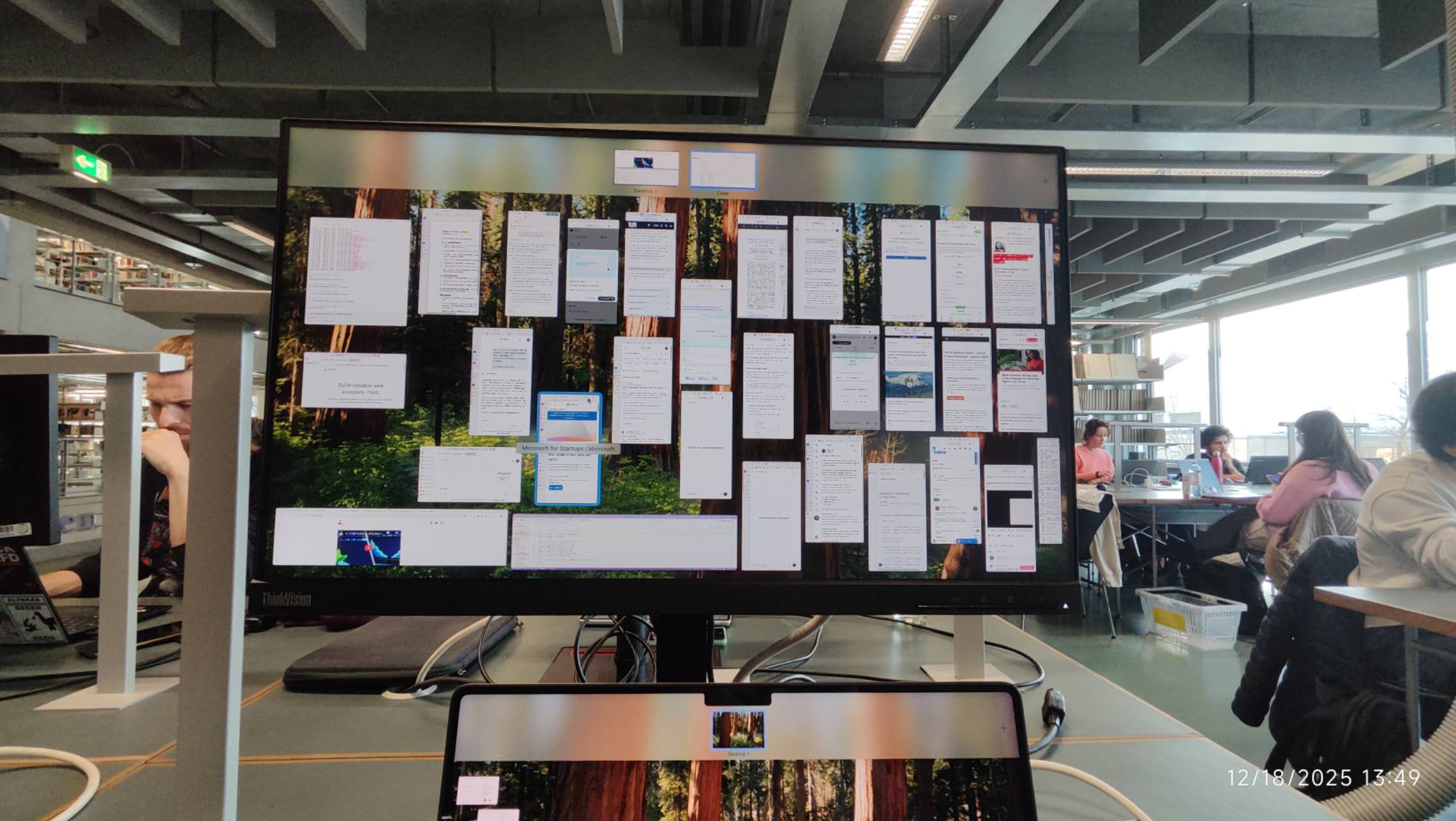
Since forever, my workspace has been a complete chaos. with 100+ unordered chrome tab, and a collection of "fashionable" AI browsers: Comet, Neo, Atlas, Brave, Edge, Dia etc. My desktop was borderline dumpster. I happened to discover a macOS window manager called Aerospace, and when combined with Sketchybar, the two create a much tidier environment. I spent some time configuring my setup and decided to document it here for future reference.
1. aerospace.toml
toml~/.config/aerospace/aerospace.toml
config-version = 2

# You can use it to add commands that run after AeroSpace startup.
# Available commands : https://nikitabobko.github.io/AeroSpace/commands
after-startup-command = ['exec-and-forget sketchybar']

# Start AeroSpace at login
start-at-login = true

# Normalizations. See: https://nikitabobko.github.io/AeroSpace/guide#normalization
enable-normalization-flatten-containers = true
enable-normalization-opposite-orientation-for-nested-containers = true

# See: https://nikitabobko.github.io/AeroSpace/guide#layouts
# The 'accordion-padding' specifies the size of accordion padding
# You can set 0 to disable the padding feature
accordion-padding = 30

# Possible values: tiles|accordion
default-root-container-layout = 'tiles'

# Possible values: horizontal|vertical|auto
# 'auto' means: wide monitor (anything wider than high) gets horizontal orientation,
#               tall monitor (anything higher than wide) gets vertical orientation
default-root-container-orientation = 'auto'

# Mouse follows focus when focused monitor changes
# Drop it from your config, if you don't like this behavior
# See https://nikitabobko.github.io/AeroSpace/guide#on-focus-changed-callbacks
# See https://nikitabobko.github.io/AeroSpace/commands#move-mouse
# Fallback value (if you omit the key): on-focused-monitor-changed = []
on-focused-monitor-changed = ['move-mouse monitor-lazy-center']

# You can effectively turn off macOS "Hide application" (cmd-h) feature by toggling this flag
# Useful if you don't use this macOS feature, but accidentally hit cmd-h or cmd-alt-h key
# Also see: https://nikitabobko.github.io/AeroSpace/goodies#disable-hide-app
automatically-unhide-macos-hidden-apps = false

# List of workspaces that should stay alive even when they contain no windows,
# even when they are invisible.
# This config version is only available since 'config-version = 2'
# Fallback value (if you omit the key): persistent-workspaces = []
persistent-workspaces = ["1", "2", "3", "4", "5", "6", "7", "8", "9"]

# A callback that runs every time binding mode changes
# See: https://nikitabobko.github.io/AeroSpace/guide#binding-modes
# See: https://nikitabobko.github.io/AeroSpace/commands#mode
on-mode-changed = []


# Notify Sketchybar about workspace change
exec-on-workspace-change = [
    "/bin/bash",
    "-c",
    "sketchybar --trigger aerospace_workspace_change FOCUSED_WORKSPACE=$AEROSPACE_FOCUSED_WORKSPACE",
]


# Possible values: (qwerty|dvorak|colemak)
# See https://nikitabobko.github.io/AeroSpace/guide#key-mapping
[key-mapping]
preset = 'qwerty'

# Gaps between windows (inner-*) and between monitor edges (outer-*).
# Possible values:
# - Constant:     gaps.outer.top = 8
# - Per monitor:  gaps.outer.top = [{ monitor.main = 16 }, { monitor."some-pattern" = 32 }, 24]
#                 In this example, 24 is a default value when there is no match.
#                 Monitor pattern is the same as for 'workspace-to-monitor-force-assignment'.
#                 See:
#                 https://nikitabobko.github.io/AeroSpace/guide#assign-workspaces-to-monitors
[gaps]
inner.horizontal = 0
inner.vertical = 0
outer.left = 0
outer.bottom = 0
outer.top = [{ monitor."^Built-In" = 0 }, 25]
outer.right = 0

# 'main' binding mode declaration
# See: https://nikitabobko.github.io/AeroSpace/guide#binding-modes
# 'main' binding mode must be always presented
# Fallback value (if you omit the key): mode.main.binding = {}
[mode.main.binding]

# All possible keys:
# - Letters.        a, b, c, ..., z
# - Numbers.        0, 1, 2, ..., 9
# - Keypad numbers. keypad0, keypad1, keypad2, ..., keypad9
# - F-keys.         f1, f2, ..., f20
# - Special keys.   minus, equal, period, comma, slash, backslash, quote, semicolon,
#                   backtick, leftSquareBracket, rightSquareBracket, space, enter, esc,
#                   backspace, tab, pageUp, pageDown, home, end, forwardDelete,
#                   sectionSign (ISO keyboards only, european keyboards only)
# - Keypad special. keypadClear, keypadDecimalMark, keypadDivide, keypadEnter, keypadEqual,
#                   keypadMinus, keypadMultiply, keypadPlus
# - Arrows.         left, down, up, right

# All possible modifiers: cmd, alt, ctrl, shift

# All possible commands: https://nikitabobko.github.io/AeroSpace/commands

# See: https://nikitabobko.github.io/AeroSpace/commands#exec-and-forget
# You can uncomment the following lines to open up terminal with alt + enter shortcut
# (like in i3)
# alt-enter = '''exec-and-forget osascript -e '
# tell application "Terminal"
#     do script
#     activate
# end tell'
# '''

# See: https://nikitabobko.github.io/AeroSpace/commands#layout
alt-slash = 'layout tiles horizontal vertical'
alt-comma = 'layout accordion horizontal vertical'

# See: https://nikitabobko.github.io/AeroSpace/commands#focus
alt-h = 'focus left'
alt-j = 'focus down'
alt-k = 'focus up'
alt-l = 'focus right'

# See: https://nikitabobko.github.io/AeroSpace/commands#move
alt-shift-h = 'move left'
alt-shift-j = 'move down'
alt-shift-k = 'move up'
alt-shift-l = 'move right'

# See: https://nikitabobko.github.io/AeroSpace/commands#resize
alt-minus = 'resize smart -300'
alt-equal = 'resize smart +300'

# See: https://nikitabobko.github.io/AeroSpace/commands#workspace
alt-1 = 'workspace 1'
alt-2 = 'workspace 2'
alt-3 = 'workspace 3'
alt-4 = 'workspace 4'
alt-5 = 'workspace 5'
alt-6 = 'workspace 6'
alt-7 = 'workspace 7'
alt-8 = 'workspace 8'
alt-9 = 'workspace 9'


# See: https://nikitabobko.github.io/AeroSpace/commands#move-node-to-workspace
alt-shift-1 = 'move-node-to-workspace 1'
alt-shift-2 = 'move-node-to-workspace 2'
alt-shift-3 = 'move-node-to-workspace 3'
alt-shift-4 = 'move-node-to-workspace 4'
alt-shift-5 = 'move-node-to-workspace 5'
alt-shift-6 = 'move-node-to-workspace 6'
alt-shift-7 = 'move-node-to-workspace 7'
alt-shift-8 = 'move-node-to-workspace 8'
alt-shift-9 = 'move-node-to-workspace 9'


# See: https://nikitabobko.github.io/AeroSpace/commands#workspace-back-and-forth
alt-tab = 'workspace-back-and-forth'
# See: https://nikitabobko.github.io/AeroSpace/commands#move-workspace-to-monitor
alt-shift-tab = 'move-workspace-to-monitor --wrap-around next'

# See: https://nikitabobko.github.io/AeroSpace/commands#mode
alt-shift-semicolon = 'mode service'


# Press Alt + Shift + F to toggle between floating and tiling
alt-shift-f = 'layout floating tiling'

# Quickly make the current window fullscreen (press again to restore)
alt-f = 'fullscreen'

# If you want to force it to take up the left half (like split screen), you can use resize
# or switch to horizontal layout
alt-ctrl-left = ['layout tiles horizontal', 'move left']
alt-ctrl-right = ['layout tiles horizontal', 'move right']


# 'service' binding mode declaration.
# See: https://nikitabobko.github.io/AeroSpace/guide#binding-modes
[mode.service.binding]
esc = ['reload-config', 'mode main']
r = ['flatten-workspace-tree', 'mode main'] # reset layout
f = [
    'layout floating tiling',
    'mode main',
] # Toggle between floating and tiling layout
backspace = ['close-all-windows-but-current', 'mode main']

# sticky is not yet supported https://github.com/nikitabobko/AeroSpace/issues/2
#s = ['layout sticky tiling', 'mode main']

alt-shift-h = ['join-with left', 'mode main']
alt-shift-j = ['join-with down', 'mode main']
alt-shift-k = ['join-with up', 'mode main']
alt-shift-l = ['join-with right', 'mode main']
2. sketchybarrc
bash~/.config/sketchybar/sketchybarrc
#!/usr/bin/env bash
# AeroSpace workspaces in SketchyBar (click to switch)
CONFIG_DIR="${CONFIG_DIR:-$HOME/.config/sketchybar}"
PLUGIN_DIR="$CONFIG_DIR/plugins"
# IMPORTANT: SketchyBar often runs with a minimal PATH.
# Pick the first aerospace binary that exists.
if [ -x "/opt/homebrew/bin/aerospace" ]; then
AEROSPACE_BIN="/opt/homebrew/bin/aerospace"
elif [ -x "/usr/local/bin/aerospace" ]; then
AEROSPACE_BIN="/usr/local/bin/aerospace"
elif command -v aerospace >/dev/null 2>&1; then
AEROSPACE_BIN="$(command -v aerospace)"
else
echo "ERROR: aerospace not found. Set AEROSPACE_BIN in sketchybarrc." >&2
exit 1
fi
# ----- Bar Appearance Settings -----
# position=top: Pin to top
# margin=8: Create a gap between Bar and screen edge for a "floating" feel
# color=0x00000000: Make the main Bar transparent, only adding background to components
sketchybar --bar position=top \
height=32 \
margin=0 \
y_offset=0 \
color=0xbb111111 \ # Base background color: dark gray, bb represents transparency
blur_radius=20 # Increase blur effect
# ----- Default Component Style (Key to Pill Shape) -----
default=(
padding_left=5
padding_right=5
icon.font="Hack Nerd Font:Bold:15.0"
label.font="Hack Nerd Font:Bold:13.0"
icon.color=0xffffffff
label.color=0xffffffff
background.color=0x40000000 # Semi-transparent dark background
background.corner_radius=12 # High corner radius produces pill effect
background.height=26 # Background height slightly smaller than Bar height
background.drawing=on # Must enable background drawing
)
sketchybar --default "${default[@]}"
# ----- Events -----
# This must match the name you trigger from AeroSpace:
# sketchybar --trigger aerospace_workspace_change FOCUSED_WORKSPACE=...
sketchybar --add event aerospace_workspace_change
# ----- Workspace items (AeroSpace) -----
# Use AeroSpace's workspace list; create one item per workspace.
# With your config, this will include 1..9 and A..Z because you set persistent-workspaces.
for ws in $("$AEROSPACE_BIN" list-workspaces --all); do
sketchybar --add item "space.$ws" left \
--set "space.$ws" \
icon.drawing=on \
label="$ws" \
label.drawing=on \
label.padding_right=8 \
icon.padding_left=8 \
background.corner_radius=8 \
background.height=24 \
background.drawing=on \
script="$PLUGIN_DIR/aerospace.sh" \
click_script="$AEROSPACE_BIN workspace $ws" \
--subscribe "space.$ws" aerospace_workspace_change
done
# ----- Optional: left items you had -----
sketchybar --add item chevron left \
--set chevron icon= label.drawing=off
# ----- Optional: right items you had -----
sketchybar --add item clock right \
--set clock update_freq=10 icon= script="$PLUGIN_DIR/clock.sh" \
--add item volume right \
--set volume script="$PLUGIN_DIR/volume.sh" \
--subscribe volume volume_change \
--add item battery right \
--set battery update_freq=120 script="$PLUGIN_DIR/battery.sh" \
--subscribe battery system_woke power_source_change
# Force initial render
sketchybar --trigger aerospace_workspace_change FOCUSED_WORKSPACE="$("$AEROSPACE_BIN" list-workspaces --focused)" 2>/dev/null || true
sketchybar --update
3. aerospace.sh (Plugin)
bash~/.config/sketchybar/plugins/aerospace.sh
#!/usr/bin/env bash
# Redefine path (ensure script can find aerospace)
if [ -x "/opt/homebrew/bin/aerospace" ]; then
AEROSPACE_BIN="/opt/homebrew/bin/aerospace"
else
AEROSPACE_BIN="aerospace"
fi
# Define icon mapping
function get_icon() {
case "$1" in
"Warp") echo "" ;;
"Slack") echo "" ;;
"Finder") echo "" ;;
"Google Chrome") echo "" ;;
"Arc") echo "" ;;
"Spotify") echo "" ;;
"Discord") echo "" ;;
"Code" | "Visual Studio Code") echo "" ;;
"IntelliJ IDEA") echo "" ;;
*) echo "" ;;
esac
}
# $NAME is the Item name passed to the script by SketchyBar (e.g. space.1)
# We need to extract the workspace number (1, 2, 3...)
WS_NAME="${NAME#space.}"
# Query Apps in this workspace
apps=$($AEROSPACE_BIN list-windows --workspace "$WS_NAME" --format "%{app-name}")
icon_strip=""
if [ -z "$apps" ]; then
icon_strip=" —"
else
while read -r app; do
icon=$(get_icon "$app")
icon_strip+=" $icon"
done <<< "$apps"
fi
# Update style
if [ "$WS_NAME" = "$FOCUSED_WORKSPACE" ]; then
sketchybar --set "$NAME" background.drawing=on \
background.color=0xff77f0a2 \
label.color=0xff000000 \
icon="$icon_strip" \
icon.color=0xff000000
else
sketchybar --set "$NAME" background.drawing=on \
background.color=0x40000000 \
label.color=0xffffffff \
icon="$icon_strip" \
icon.color=0xffffffff
fi
4. effects
 aero
aero
5. useful commands
bash
code ~/.config/aerospace/aerospace.toml
brew install sketchybar
brew install --cask font-sketchybar-app-font
bash
cat ~/.config/sketchybar/plugins/aerospace.sh | pbcopy

pbpaste > ~/.config/sketchybar/plugins/aerospace.sh

chmod +x ~/.config/sketchybar/plugins/aerospace.sh

brew service restart sketchybar

sketchybar --reload
references
- https://nikitabobko.github.io/AeroSpace/guide
- https://felixkratz.github.io/SketchyBar/config/bar
- https://github.com/Kainoa-h/aerospace-sketchybar
- https://www.josean.com/posts/sketchybar-setup